Help · Between shows
Choose your buy signals
Buy signals help you decide whether to buy a card at the table. They never change a price or an offer. Open Settings, "Buy signals".
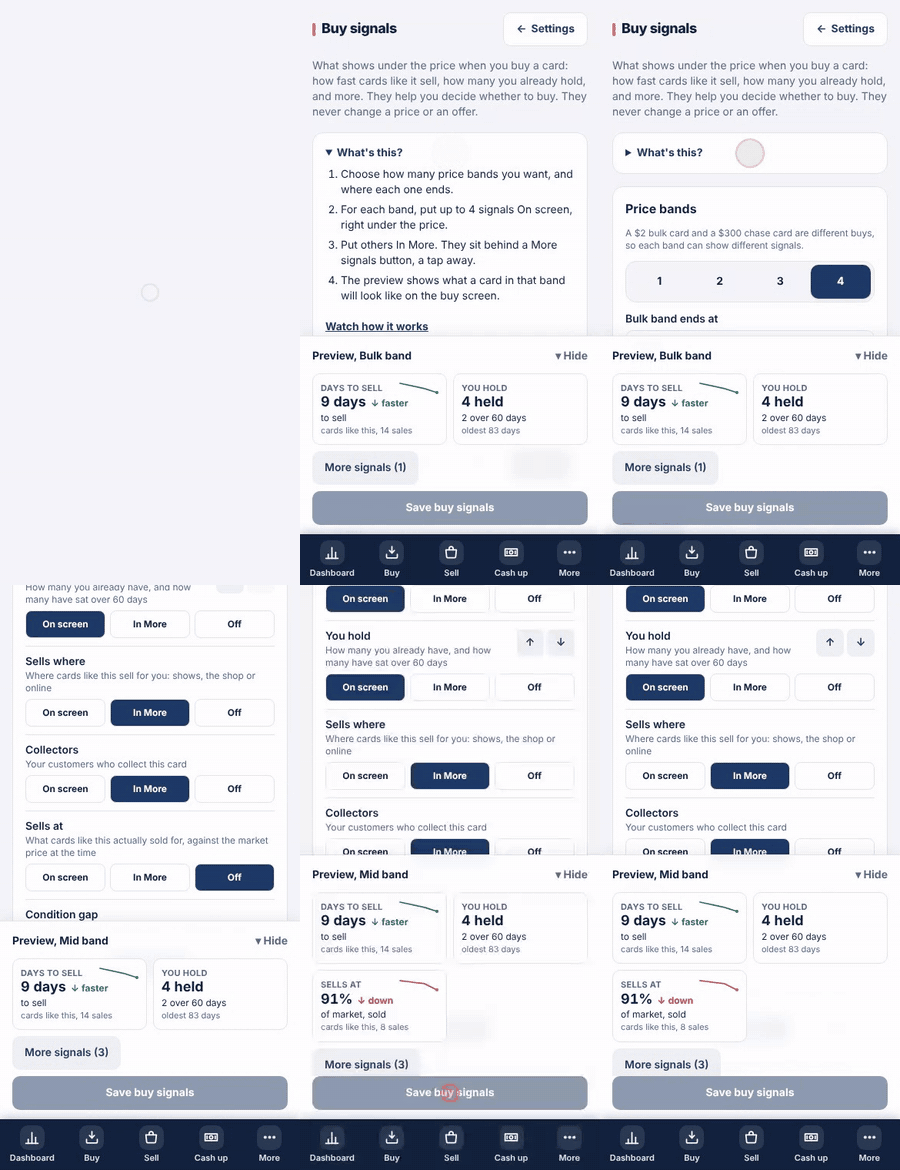
- Under "Price bands", pick how many bands you want, 1 to 4, and type where each band ends. A $2 bulk card and a $300 chase card are different buys, so each band can show different things.
- Tap a band, such as "Bulk" or "Mid", to set what shows for cards in that price range.
- For each signal, pick "On screen" to show it under the price, "In More" to keep it a tap away under More signals, or "Off". Up to four go on screen. Use the arrows to change their order.
- Watch the "Preview": it shows a card in that band with sample numbers. On a phone it sits at the bottom of the screen; tap it to fold it away.
- Tap "Save buy signals". The buy screen uses them from the next card.
The signals
- Days to sell: how long cards like this take to sell for you.
- You hold: how many you already have, and how many have sat over 60 days.
- Sells where: where cards like this sell for you: shows, the shop or online.
- Sells at: what cards like this actually sold for, against the market price at the time.
- Collectors: your customers who collect this card. Condition gap: Near Mint against Lightly Played.
- Days to sell, Sells at and Sells where show a small line of the last four months, with an arrow and a word such as faster or slower, when there are enough sales to tell. Green is getting better for you, red is getting worse.
- Signals that need more data, such as Price trend, say when they arrive and stay hidden on the buy screen until then.
Good to know
- Signals come from your own sales and stock, so a new shop sees few of them at first. A card with no history shows no signals rather than empty boxes.
- "Back to the TenthPocket layout" puts the starting layout back.
- Only an owner or manager can change buy signals.