Help · At the table
Sell and take payment
Open "Sell" from the tab bar. It searches the copy of your stock on your phone when there is no signal.
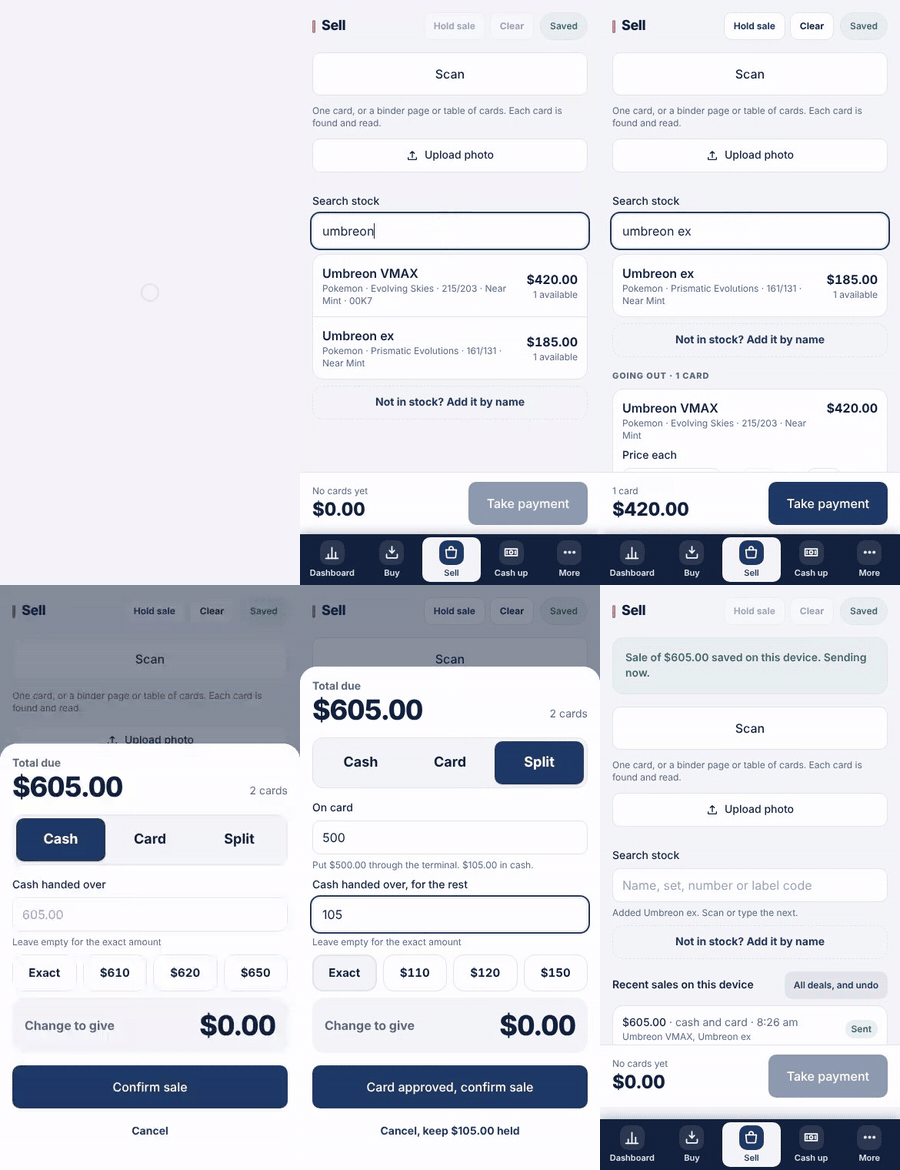
- Scan a price label, or type a name or label code into "Search stock". Tap the card to add it.
- Add more cards the same way. Each line shows its price; change "Price each" if you agree a different price.
- For money off the whole sale, use "Discount on the sale, optional" in dollars or per cent.
- Tap "Take payment" and choose "Cash", "Card" or "Split".
- Cash: type or tap what you were handed. "Change to give" shows the change. Tap "Confirm sale".
- Card: put the amount through your terminal, then tap "Card approved, confirm sale".
- Split: type the amount "On card", put that through the terminal, take the rest in cash, then tap "Card approved, confirm sale".
Good to know
- TenthPocket does not take card payments. Use your own EFTPOS terminal or reader, then record it here.
- Selling something not in stock? Type its name, add a price and tap "Add to sale". It shows as "Not from stock".
- "Hold sale" keeps the cart on this phone while you serve someone else. Find it under "Held sales, on this phone".
- Split payment is for sales. A trade takes cash or card.